
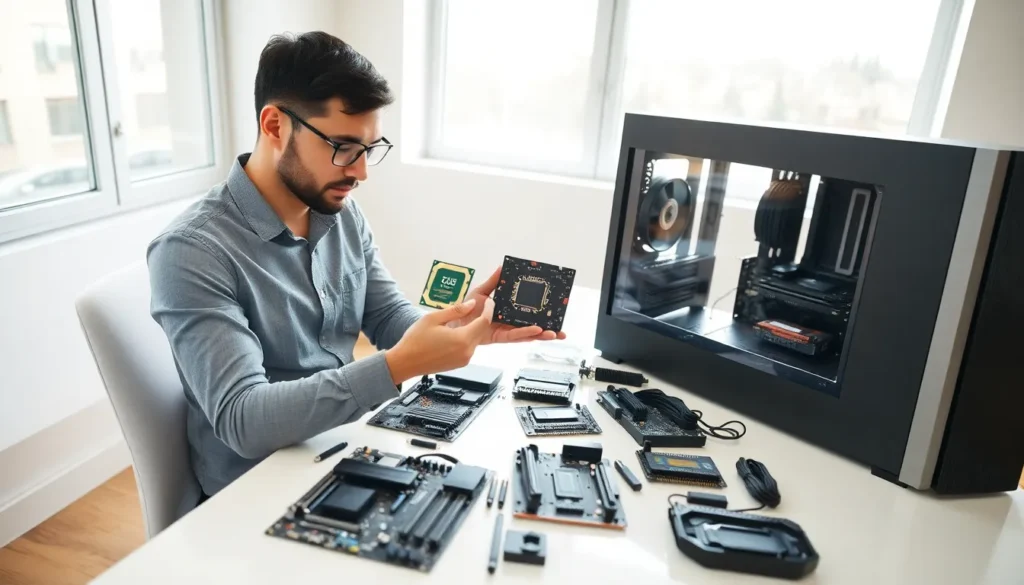

Learning how to hardware might sound like an odd phrase, but it captures something real: the need to understand what’s actually inside your computer. Whether someone wants to build a PC, upgrade an old machine, or simply make smarter buying decisions, hardware knowledge matters.
Hardware refers to the physical parts of a computer. These components work together to run software, store files, and connect users to the digital world. Without hardware, there’s no computer, just code floating in space with nowhere to go.
This guide breaks down the essentials. It covers what hardware is, which components matter most, how to choose the right parts, and how to keep everything running smoothly. No engineering degree required.
Table of Contents
ToggleKey Takeaways
- Learning how to hardware empowers you to diagnose problems, upgrade strategically, and avoid overpaying for specs you don’t need.
- The CPU, RAM, and storage (HDD vs. SSD) are the core components that determine your computer’s speed and capability.
- Match your hardware to your actual needs—basic tasks require modest specs, while gaming and creative work demand more powerful components.
- Upgrading RAM or switching from an HDD to an SSD offers one of the best performance improvements for the money.
- Regular maintenance like cleaning dust, monitoring temperatures, and updating drivers extends hardware lifespan and prevents common issues.
- Always verify component compatibility (CPU to motherboard, RAM generation) before purchasing new hardware.
What Is Hardware and Why Does It Matter?
Hardware includes every physical component inside and connected to a computer. The monitor, keyboard, mouse, and internal parts like the processor and memory all qualify as hardware. Software tells hardware what to do, but hardware does the actual work.
Understanding how to hardware, meaning how to identify, select, and work with these components, gives users real power. They can diagnose problems faster. They can upgrade strategically instead of replacing entire systems. And they can avoid overpaying for specs they don’t need.
Here’s a simple way to think about it: software is the recipe, but hardware is the kitchen. A great recipe won’t help if the oven doesn’t work or the pans are too small. The same logic applies to computers. Fast software on slow hardware delivers a frustrating experience.
Hardware also determines what tasks a computer can handle. Video editing requires different specs than web browsing. Gaming demands components that office work doesn’t. Knowing these differences helps users match their hardware to their actual needs.
Essential Hardware Components Every User Should Know
Every computer contains several core components. Understanding these parts makes the “how to hardware” learning curve much easier to climb.
Central Processing Unit (CPU)
The CPU acts as the brain of any computer. It processes instructions and performs calculations that make everything else possible. When someone opens an application, the CPU handles that request.
CPU speed is measured in gigahertz (GHz), but speed alone doesn’t tell the whole story. Core count matters too. Modern CPUs often have 4, 8, or even 16 cores. More cores allow the processor to handle multiple tasks at once. A video editor or game developer benefits from higher core counts. Someone who mostly browses the web and writes documents can get by with fewer.
Popular CPU manufacturers include Intel and AMD. Both offer options across various price points and performance levels.
Memory and Storage
Memory and storage serve different purposes, though people often confuse them.
RAM (Random Access Memory) provides short-term memory. It holds data the CPU needs right now. More RAM allows more programs to run smoothly at the same time. Most users need at least 8GB of RAM. Power users and gamers often want 16GB or more.
Storage holds files long-term. Two main types exist: Hard Disk Drives (HDDs) and Solid State Drives (SSDs). HDDs use spinning disks to read and write data. They’re cheaper per gigabyte but slower. SSDs use flash memory with no moving parts. They cost more but deliver significantly faster performance.
For anyone learning how to hardware, upgrading RAM or switching from an HDD to an SSD offers one of the best bang-for-buck improvements available.
How to Choose the Right Hardware for Your Needs
Choosing hardware starts with one question: what will this computer actually do?
For basic tasks like email, web browsing, and document editing, modest hardware works fine. A mid-range CPU, 8GB of RAM, and a 256GB SSD handle these jobs without breaking a sweat, or the budget.
Gaming requires more muscle. A dedicated graphics card (GPU) becomes essential. The GPU renders images, animations, and video. Integrated graphics built into CPUs can’t match the performance of standalone cards from NVIDIA or AMD. Gamers also benefit from 16GB or more of RAM and faster CPUs.
Creative professionals need to consider their specific workflows. Video editors benefit from fast storage and plenty of RAM. 3D artists need powerful GPUs. Music producers prioritize low-latency audio interfaces and reliable processors.
Budget plays a role too. Hardware prices vary widely. Someone learning how to hardware should research current prices and read reviews before buying. Last year’s components often deliver excellent value as newer models push prices down.
Compatibility matters as well. Not every CPU fits every motherboard. RAM comes in different generations (DDR4, DDR5) that aren’t interchangeable. Always verify that components work together before purchasing.
Basic Hardware Maintenance and Troubleshooting Tips
Hardware lasts longer with basic care. A few simple habits prevent most common problems.
Keep it clean. Dust accumulates inside computers and blocks airflow. Blocked airflow causes overheating. Overheating damages components and slows performance. Use compressed air to clean vents and fans every few months.
Monitor temperatures. Free software like HWMonitor or Core Temp shows CPU and GPU temperatures. If components run hot consistently, better cooling or cleaning may be needed.
Update drivers. Hardware needs software drivers to communicate with the operating system. Outdated drivers can cause crashes, poor performance, and compatibility issues. Check manufacturer websites periodically for updates.
Back up data. Storage devices fail eventually. Everyone learning how to hardware should also learn how to back up. External drives and cloud storage both work. The method matters less than doing it regularly.
Troubleshooting follows a logical process. Start with the simplest possibilities. Is everything plugged in? Has a restart been tried? Many issues resolve with these basic steps.
For hardware failures, isolating the problem helps. If a computer won’t start, test with different RAM sticks or a different power supply if available. Swap components one at a time to identify the culprit.
When in doubt, search the specific error message or symptom online. Someone else has probably encountered the same issue.


